
Web Design
WordPress
Beginner Friendly
How to Make a Website in Pakistan (Step by Step, No Coding)
Want your own website, but think you need a coder and a big budget? You don’t. Here is exactly how I make a website in Pakistan with WordPress, step by step, with my own hands. No coding, no AI, just clicks and chai. ☕
By Mariam • • 10 min read

In this guide, I will show you how to make a website in Pakistan, from zero to live, step by step, the same way I do it for my clients. First, we will install WordPress on Hostinger. Then we will add the free Astra theme, import a ready-made design with Elementor, and finally make it yours with your own words and pictures.
Yes, AI can build websites too, and I will show you that in another blog. But first, I want you to learn the human way. Because when you know how the car works, you drive it much better. 🚗
What You Need to Make a Website in Pakistan
My Little Shopping List
A domain name, your website’s address (like yourname.com)
Hosting, your website’s home on the internet (I use Hostinger)
A debit or credit card that works for online payments
A laptop (buying works on a phone, but building is much easier on a laptop)
Your logo, a few lines about your work, and some pictures
Two or three free hours, and a cup of chai, of course ☕
Domain vs hosting in one line: The domain is your address, and the hosting is your house. You need both, and you renew both every year.
Card tip for Pakistan: Many Pakistani bank cards have online international payments turned off. So before you pay, turn them on in your banking app, or call your bank. It saves a lot of “payment failed” tension! 😅
Before You Make a Website in Pakistan: Get a Domain and Hosting
Don’t Have Them Yet? Start Here 👇
Buying a domain and hosting is a full story by itself, so I wrote two separate easy guides for you. One shows how to buy a domain from Namecheap, and the other shows how to buy hosting from Hostinger. Read them, get both, and then come back here. I will wait! 😊
Already have both? Great, jump straight to Step 1.
How to Make a Website in Pakistan: 16 Easy Steps
Now open your laptop and log in to Hostinger. Let’s build it together, one click at a time.
Step 1
Add Your Website in Hostinger
First, log in to Hostinger and click Websites on the left side. Open the website list at the top and click + Add Website. Then choose the domain you want to use. If you bought your domain from Hostinger, it shows up right there. If you bought it somewhere else, choose the option to use a domain you already own.
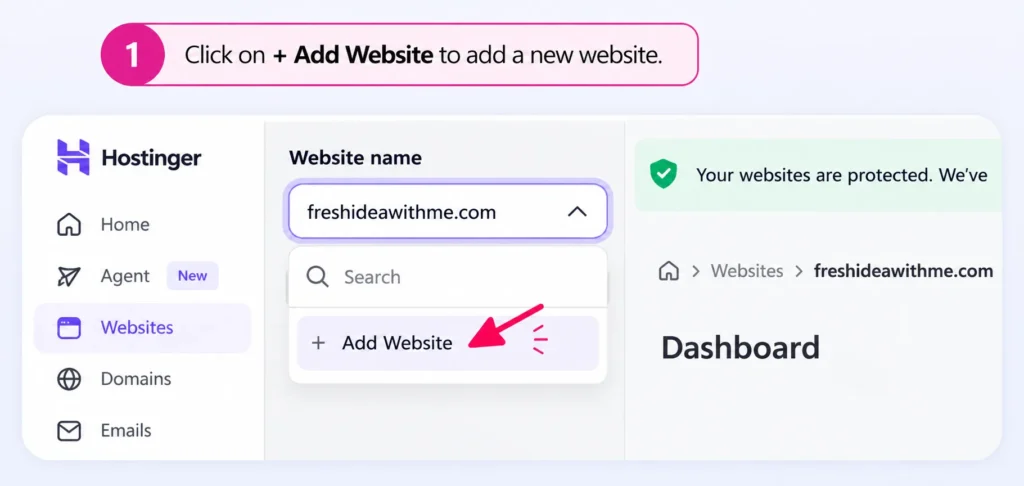
Click + Add Website in your Hostinger dashboard.
💡 Bought your domain from Namecheap? Then point it to Hostinger by changing its nameservers. It takes two minutes, and my domain guide shows it step by step.
Step 2
Click Install WordPress
Now open your website’s dashboard. On the left side, go to WordPress → Overview. You will see a box called Install WordPress, so click the Install button. No downloading, no uploading. Hostinger does the heavy work for you.
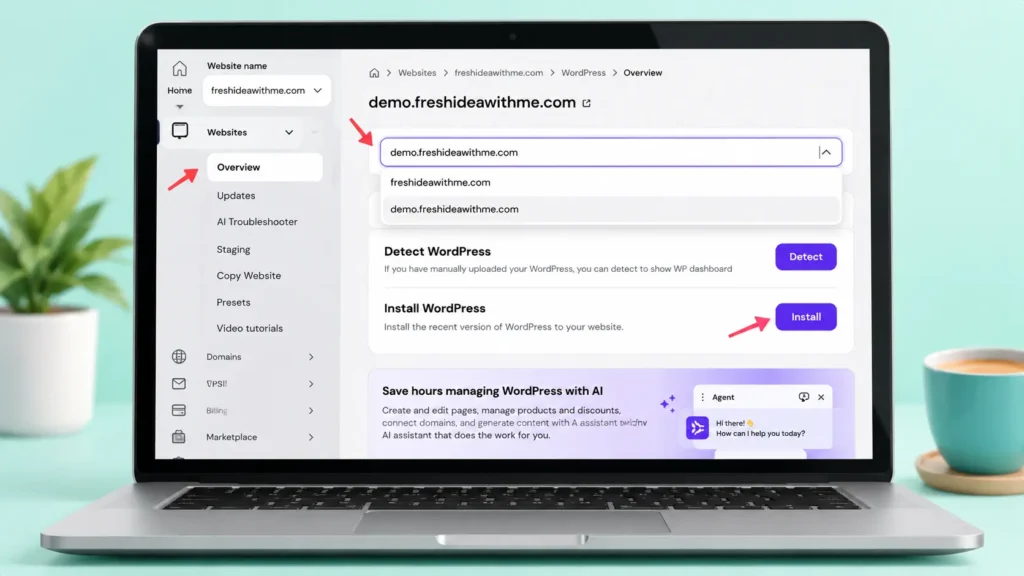
Open WordPress → Overview and click Install.
Step 3
Add Your Admin Details
Next, Hostinger asks for your website details. Write your website title, your admin email, a username and a strong password. This is the key to your WordPress dashboard, so save it somewhere safe. Not on a sticky note on the fridge, please! 😄 Then click Next.
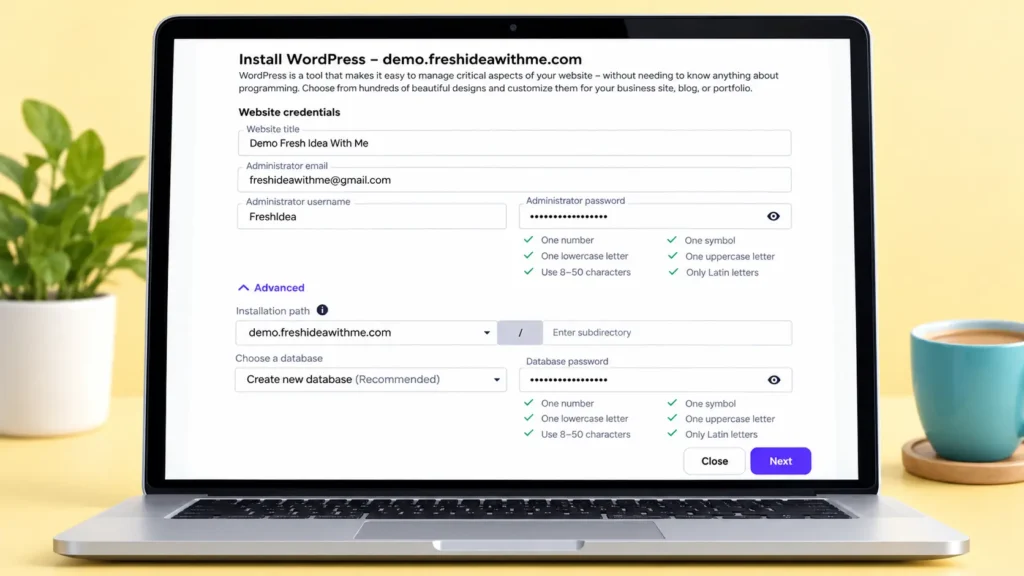
Your website title, email, username and password.
💡 Don’t use “admin” as your username. It is the first name hackers try. Pick something only you know.
Step 4
Keep the Recommended Settings and Click Install
Now you will see the version settings. Keep the WordPress version that says (Recommended) and choose your language. Under updates, select Update only to minor version, which is also marked recommended. Then click Install and wait a few minutes.
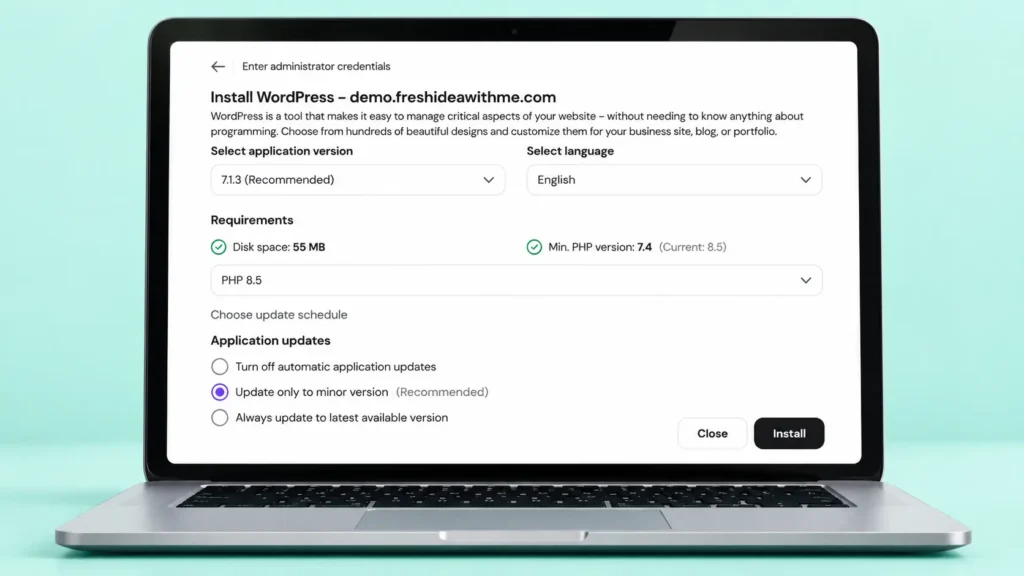
Leave the recommended options and press Install.
💡 Minor updates are small safety fixes, so they are good to run automatically. Big updates are better done by you, after a backup.
Step 5
Skip the AI Builder and Open WordPress Admin
When WordPress is ready, Hostinger shows an AI website builder. It is tempting, I know! But today we are learning the human way. So look at the top right corner and click Go to WordPress admin. Welcome to your new WordPress dashboard! 🎉
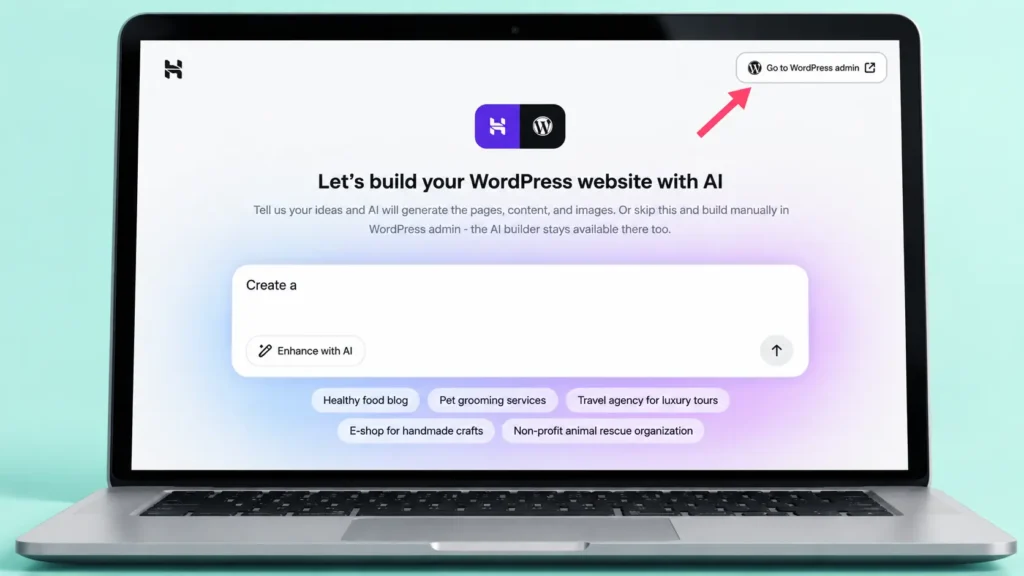
Skip AI for today and go straight to WP Admin.
Step 6
Install the Free Astra Theme
A theme is like the clothes of your website. I use Astra because it is light, fast and free. In the left menu, go to Appearance → Themes and click Add Theme. Search for Astra, click Install, and then click Activate.
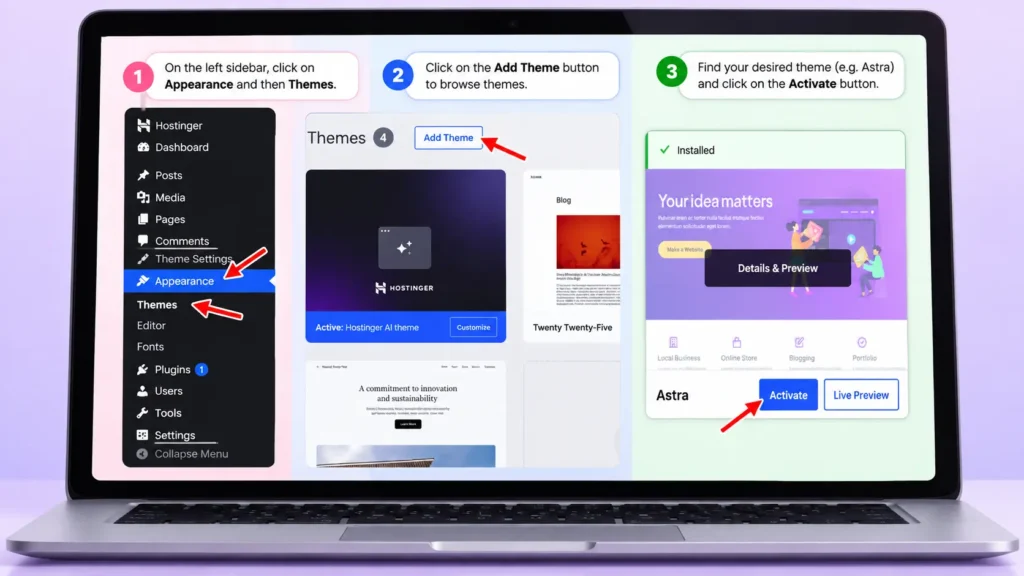
Find Astra, install it, and activate it.
Step 7
Delete the Extra Themes
WordPress comes with a few default themes, like Twenty Twenty-Four. You don’t need them now. So in Appearance → Themes, click on each extra theme, then click Delete at the bottom right. Keep only Astra.
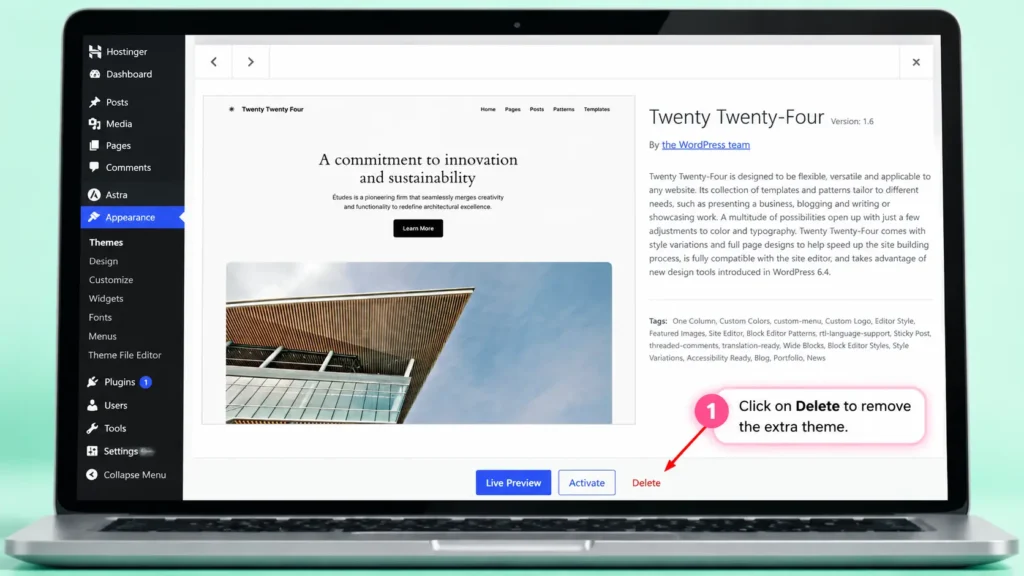
Open the extra theme and click Delete.
💡 Fewer themes means fewer updates and a cleaner, safer website.
Step 8
Install the Starter Templates Plugin
Now go to Plugins → Add Plugin and type Starter Templates in the search box. It comes from the same Astra team. Click Install Now and then Activate. This plugin gives you ready-made website designs for free.
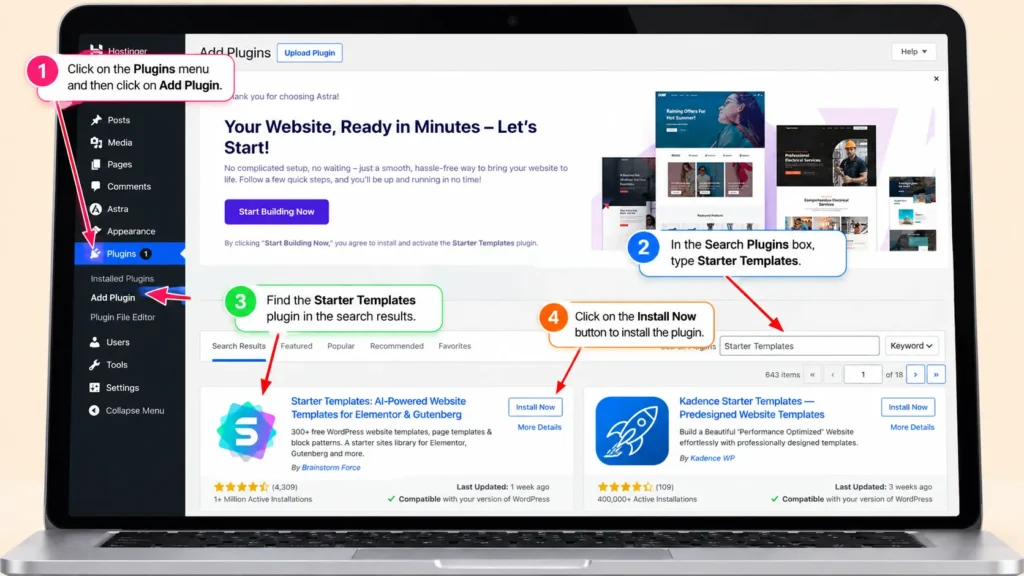
Search for Starter Templates, install and activate it.
Step 9
Install the Elementor Plugin
Elementor is the page builder where you will edit everything by dragging and clicking. Go to Plugins → Add Plugin again and search for Elementor. Find Elementor Website Builder, click Install Now, and then Activate.
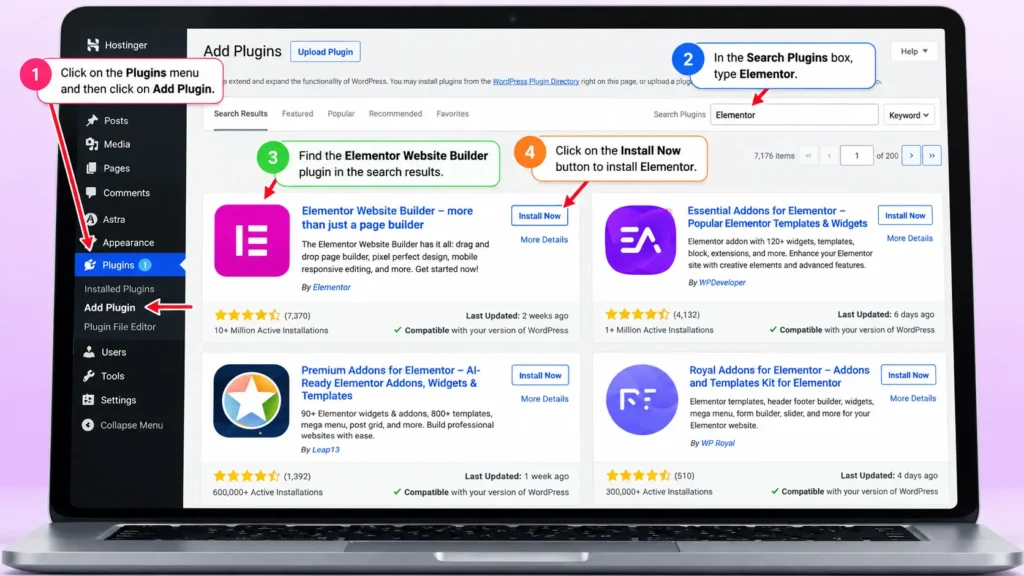
Install Elementor Website Builder and activate it.
Step 10
Add a New Page and Hide the Title
Go to Pages → Add New Page and name it Home. Then click Edit with Elementor. Inside Elementor, click the settings icon to open Page Settings and turn on Hide Title. This way your design shows clean, without an extra “Home” heading on top.
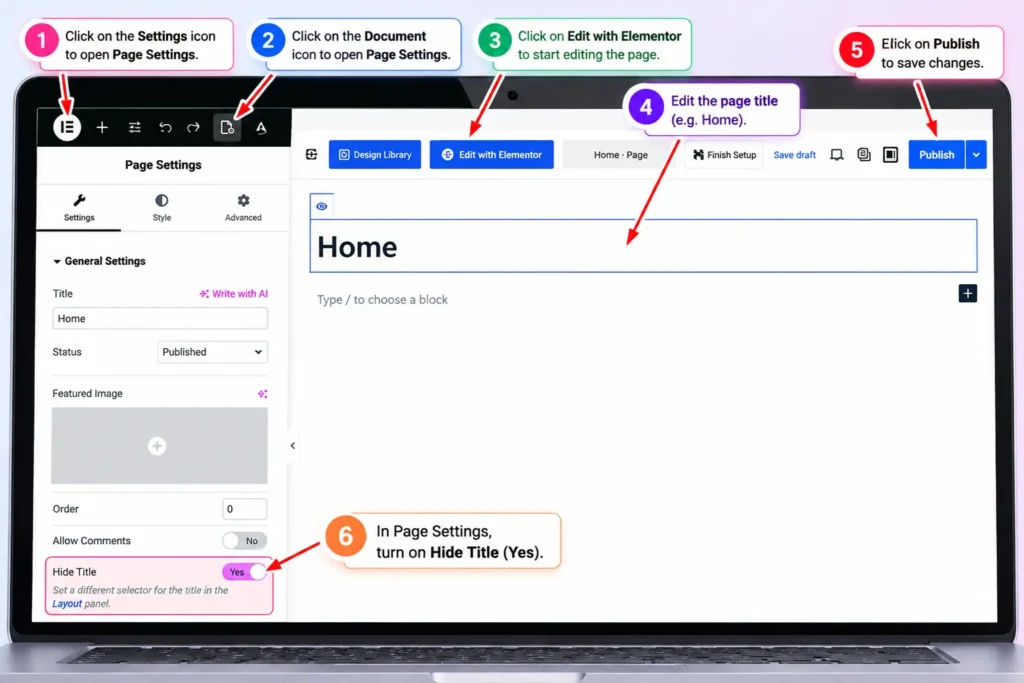
Name the page Home, open Elementor and hide the title.
Step 11
Click the Starter Templates Button
In the middle of the empty Elementor page, you will see a few small icons. Click the Starter Templates icon. It opens the whole library of ready-made designs right inside Elementor.
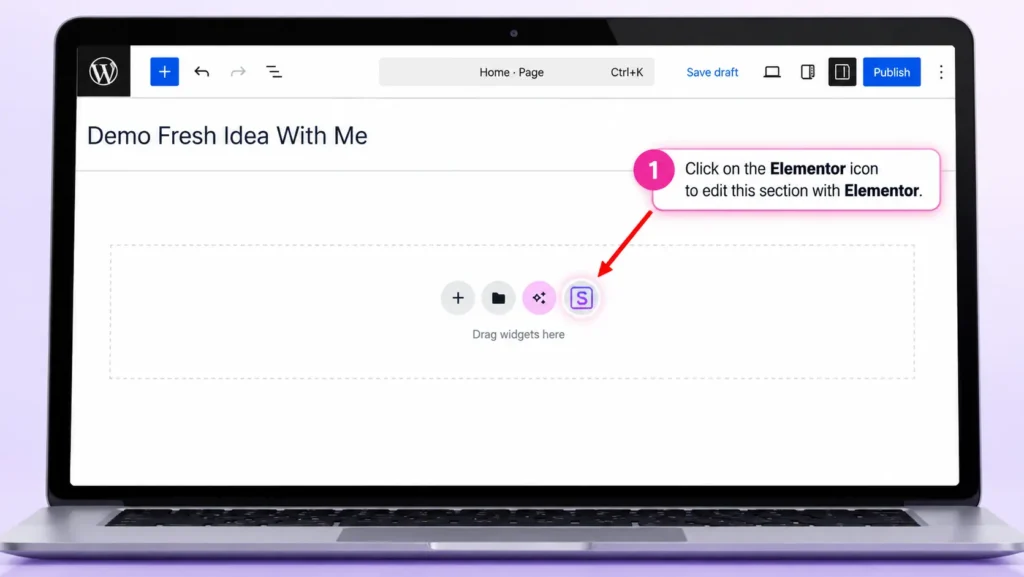
The Starter Templates icon inside Elementor.
Step 12
Choose a Template and Import It
Scroll through the designs and click the one you like. Don’t hunt for a perfect match; look for a good layout, because colors and pictures will change anyway. Then click Install Required Plugins & Import.
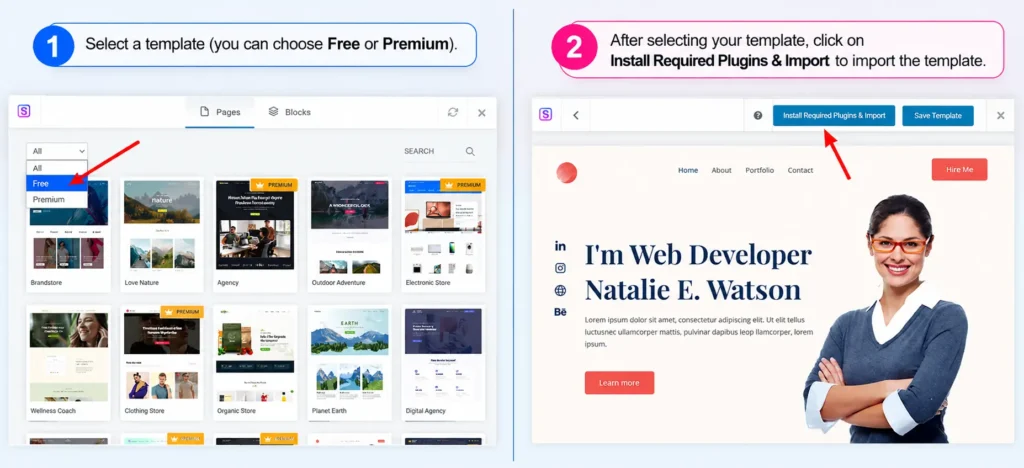
Pick a free template and click Import.
💡 Some templates have a Premium label, and those need a paid plan, so pick a free one. Also, the import can take 5 to 15 minutes. Keep the window open and enjoy your chai. ☕
Step 13
Change the Text
Now the fun part! Click on any heading or paragraph. On the left side, the Text Editor box opens, so remove the sample words and type your own. Honestly, it feels like editing a Word file!
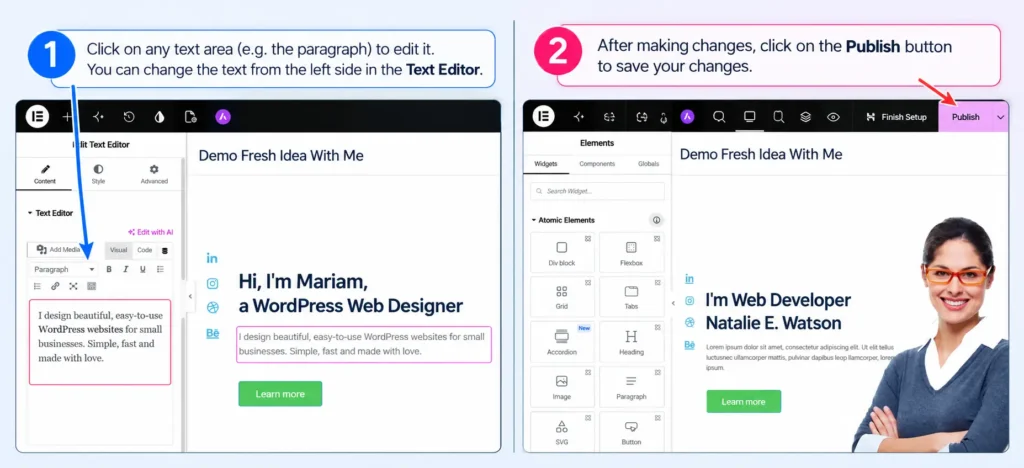
Click any text and type your own words.
💡 Write your own text. Copied text from other websites hurts your Google ranking.
Step 14
Change the Images
Click any image. On the left side, click the picture to open the Media Library. Upload your photo, or choose one you already uploaded, and click Select. But please compress your images first, so your website stays fast.
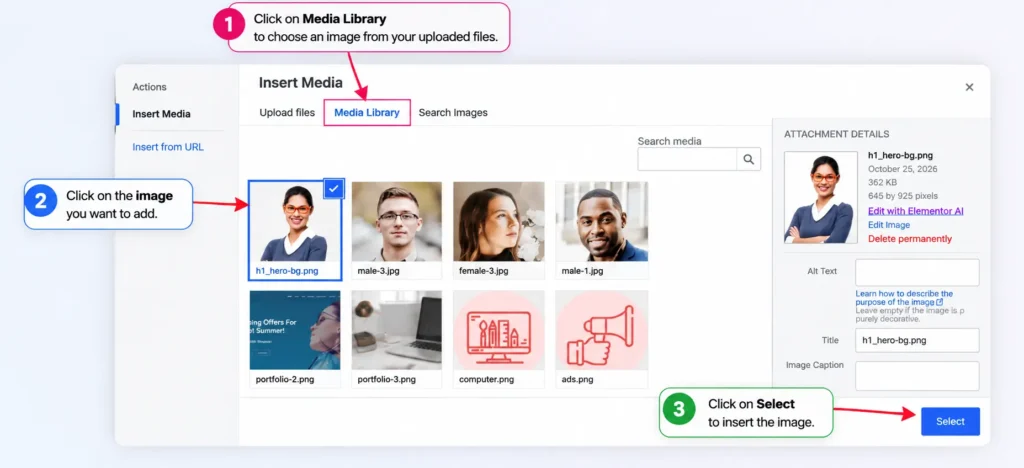
Pick your own picture from the Media Library.
Step 15
Publish and Set Your Homepage
When you are happy, click the Publish button. Then tell WordPress that this page is your homepage. Go to Settings → Reading, choose A static page, select Home as your homepage, and click Save Changes. Now your design opens first when anyone visits your website.
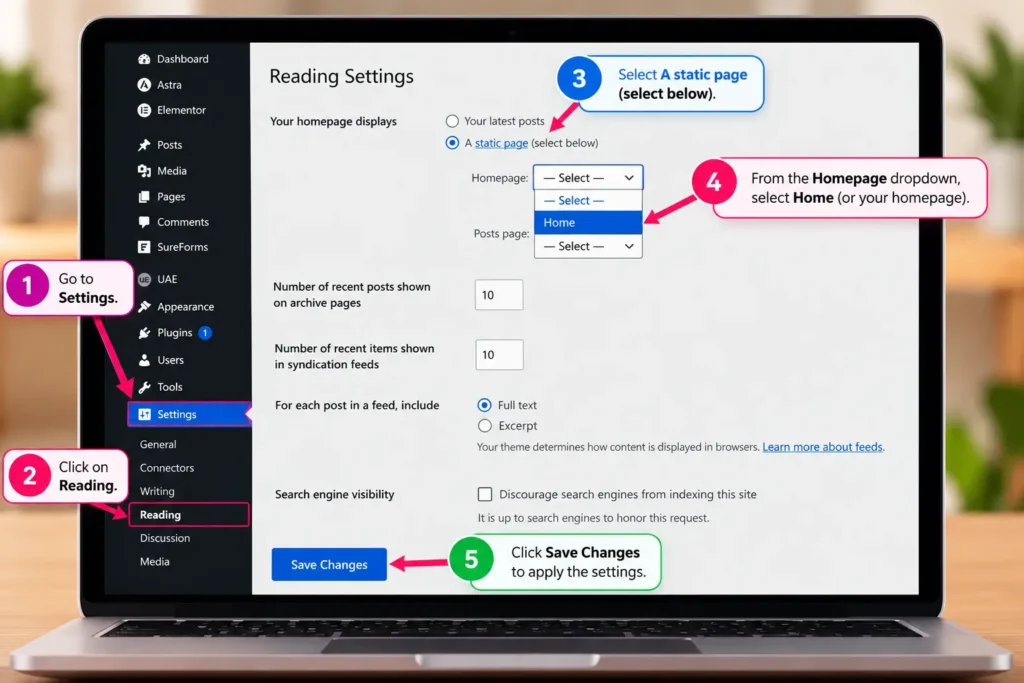
Settings → Reading: choose A static page and select Home.
💡 People often skip this step and then wonder why their website still shows the old blog page. Don’t forget it!
Step 16
Check Your Website on Mobile
Finally, open your website on your phone. In Pakistan, most people will visit your website on a mobile, so make sure it looks good there too. 📱 If something looks off, open Elementor, click the responsive mode icon, and fix it in the mobile view.
My Tips to Make a Website in Pakistan the Right Way
When you make a website in Pakistan, these small things save big headaches later.
Little Rules, Big Difference
Don’t install 20 plugins. Fewer plugins means a faster and safer website.
Delete the template pages and pictures you don’t need.
Write your own text. Copied text from other websites hurts your Google ranking.
Keep WordPress, your theme and your plugins updated.
Take a backup before any big change.
What Kind of Website Can You Make in Pakistan?
With these same steps, you can make a website in Pakistan for almost any idea. For example:
A Business Website
Show your services, prices and contact details, so customers can trust you.
An Online Portfolio
Show your work, like designs, photos or recipes, in one beautiful place.
A Blog
Share what you know with the world, just like I am doing right now! 😉
Quick Questions
How much does it cost to make a website in Pakistan?
If you do it yourself, you mainly pay for the domain and the hosting, and you renew both every year. WordPress, Astra, Starter Templates and Elementor all have free versions. Prices change with offers, so always check the latest price before you buy.
Can I make a website for free in Pakistan?
Yes, you can start for free on a free subdomain, and it is great for practice. However, it looks less professional and has limits. So for a business, a real domain and hosting are worth it.
Do I need to know coding?
Not at all. If you can use WhatsApp, you can follow these steps. Everything is clicking and typing.
Can I make a website on my phone?
You can buy your domain and hosting on your phone. However, building and editing is much easier on a laptop, because you can see the full page.
How long does it take to make a website?
A simple website can be ready in one day. Still, writing your text and making your pictures usually takes the most time, so prepare them first.
How long does the template import take?
Usually 5 to 15 minutes, depending on the template and your internet. Keep the window open until it finishes, and don’t click back.
Why is my homepage still showing the old page?
You probably skipped the homepage setting. Go to Settings → Reading, choose A static page, select Home, and save. That fixes it.
Final Thoughts
Learning how to make a website in Pakistan is not magic. It is just small steps, one after another. Today you learned the human way: Hostinger, WordPress, Astra, a template, and then your own words and pictures.
Next time, I will show you how Claude builds a website with me, and you will see how much faster it gets. But trust me, knowing these basics first makes you the boss of your website, not the other way around. 💪
And if you would rather have someone build it for you, I make websites too. 😊
With love,
Mariam
Over to You
Let’s Build Yours! 🛠️
Which website are you going to make first? Tell me in the comments. And when it is live, share the link, because I would love to see it! 💛